Few things disrupt work or gaming faster than a keyboard that types the wrong characters. You press “W” and get a symbol, or your number pad stops behaving correctly.
When a wired mechanical keyboard starts acting this way, it often looks like hardware failure. In most cases, it is not. A mechanical keyboard wired setup is stable by design, so the issue usually comes from system settings, minor connection problems, or input conflicts. This guide explains the most common causes and how to fix them step by step.
Common Reasons Your Wired Mechanical Keyboard Types Wrong Keys
1. Keyboard Layout or Language Switch
This is the most common cause.
Your system may switch input modes without notice. This changes how keys are interpreted.
Symptoms:
- Wrong letters or symbols appear
- Keys do not match physical layout
Fix:
- Switch input language (Windows: Win + Space)
- Set correct keyboard layout (US QWERTY recommended)
- Remove unused language packs
2. USB Connection Instability
Even a wired gaming mechanical keyboard depends on a clean USB signal.
Possible issues:
- Loose USB port
- Faulty USB hub
- Poor extension cable
Fix:
- Plug directly into the PC or motherboard
- Avoid unpowered USB hubs
- Try another USB port
3. Function Layer or Mode Change
Many full size wired mechanical keyboards include FN layers or special modes.
Symptoms:
- Number keys act like arrows
- Media keys trigger unexpectedly
- Layout feels “swapped”
Fix:
- Reset keyboard (usually FN + ESC or reset combo)
- Disable gaming or macro mode
- Restore default settings

4. Software or Key Remapping Conflicts
Some software can override key inputs.
Common causes:
- Macro tools
- Gaming software overlays
- Key remapping utilities
Fix:
- Close related software
- Reset key mapping
- Restart the system
5. Dust or Physical Key Issues
If only a few keys are affected, the issue may be physical.
Fix:
- Clean with compressed air
- Remove and re-seat keycaps
- Test on another device

How MOFii Designs for Input Stability
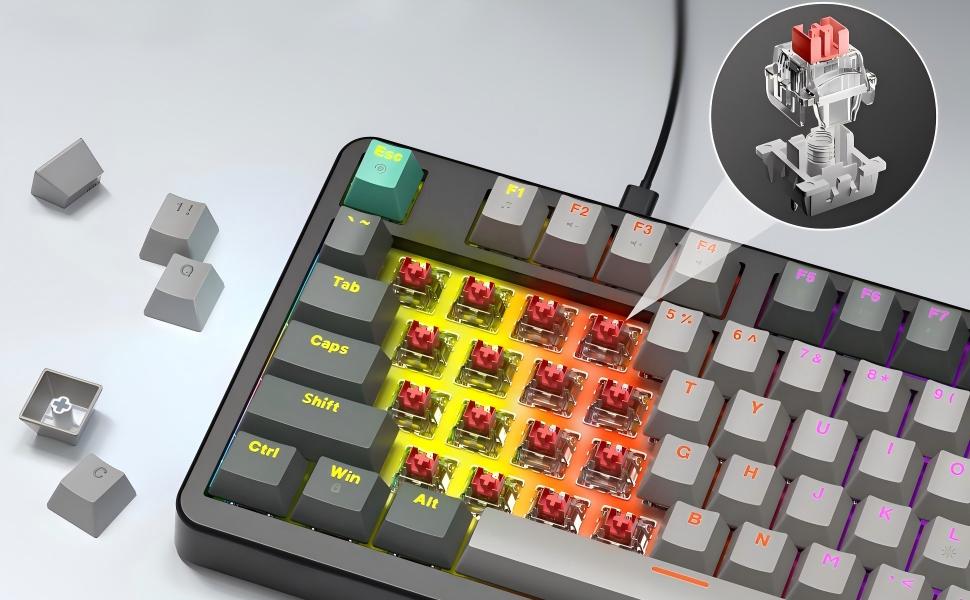
A stable wired mechanical keyboard should minimize configuration issues. MOFii focuses on hardware simplicity and consistent input behavior:
- 96% compact layout with full numpad
- Linear red mechanical switches with smooth actuation
- Plug & Play USB connection (no driver required)
- 65-inch long USB cable for flexible setup
- USB to Type-C adapter included for compatibility
- Ergonomic 3-angle kickstands for comfortable typing
- Non-slip base for stable desk positioning
These design choices reduce dependency on software layers, which are often a source of input conflicts.

When to Replace Your Keyboard
Consider replacement if:
- The issue appears on multiple devices
- Keys remain incorrect after reset
- USB cable is physically damaged
- Multiple keys fail at the same time
Conclusion:
A wired mechanical keyboard typing wrong keys is usually caused by system settings, connection issues, or mode switching—not permanent hardware failure. Most problems can be solved in minutes with layout correction, USB reconnection, or a simple reset.
For users who want more consistent input behavior, a well-designed mechanical keyboard wired setup like MOFii’s focuses on plug-and-play stability and reduces software-related errors.