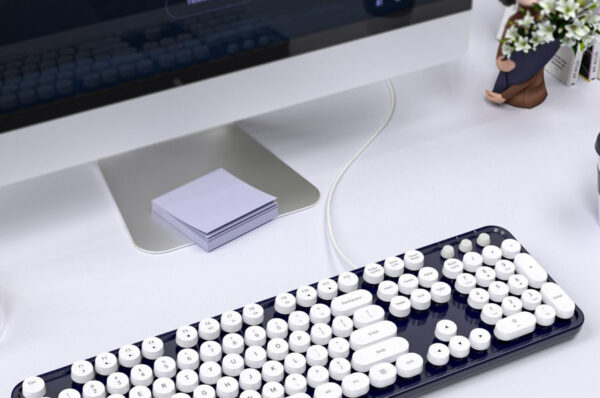
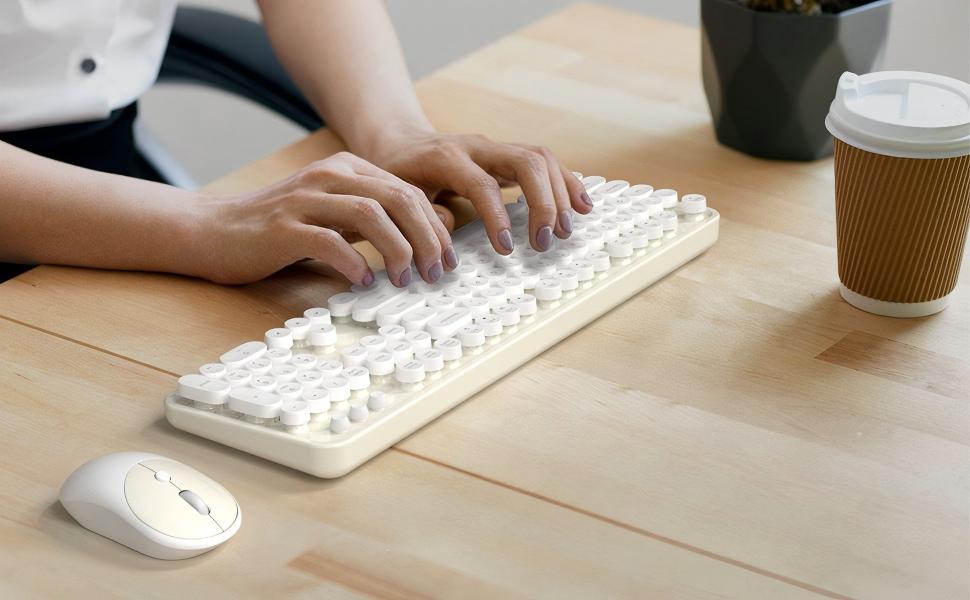
Wireless peripherals like wireless keyboard and mouse combos have become integral to daily work and leisure activities. The convenience of these devices comes with less clutter and greater flexibility, but even the most reliable wireless keyboard mouse sets can experience technical issues over time. In this guide, we’ll walk you through common issues with wireless keyboard with mouse and bluetooth keyboard and mouse products, providing clear troubleshooting steps to resolve each problem effectively. Whether you’re using MOFII products or others, these solutions will help you keep your wireless devices in top condition.
1. Connection Problems: How to Fix Pairing Failures
One of the most frequent issues users face with wireless keyboard and mouse combos is trouble connecting the devices to their computers. This may happen due to low battery levels, interference, or other technical glitches.
Troubleshooting Steps:
-
Check the Battery: Low battery power is one of the most common reasons for connection issues. Replace the batteries or recharge the device if needed.
-
Re-pair the Device: For bluetooth keyboard and mouse models, try removing the device from the system’s Bluetooth settings and re-pairing it.
-
USB Receiver Check: For wireless keyboard mouse sets that rely on a USB dongle, ensure the receiver is properly inserted into the USB port. It should fit snugly and be recognized by the system.
-
Minimize Interference: Wireless devices like Wi-Fi routers or Bluetooth speakers can cause interference. Keep the keyboard, mouse, and receiver away from other electronics or change to a different USB port to avoid interference.
MOFII Tip:
MOFII’s wireless keyboard mouse sets are equipped with high-sensitivity receivers and stable Bluetooth connectivity to help minimize connection issues. If you experience connection difficulties, it might be worth checking if there’s any signal interference from nearby devices.

2. Unresponsive Devices: How to Fix Your Keyboard or Mouse
Sometimes the keyboard or mouse will become unresponsive. Whether one key isn’t working or the whole device is inactive, this can be frustrating.
Troubleshooting Steps:
-
Restart the Device: Turn the keyboard and mouse off, wait a few seconds, and then turn them back on. This can solve temporary glitches.
-
Test on Another Device: To rule out computer-side problems, try connecting your wireless keyboard and mouse combo to another computer or device. If it works, the issue might be related to your computer’s settings.
-
Clean the Device: Dust, dirt, or debris can accumulate under keys or in the mouse sensor, blocking functionality. Regularly clean your devices using compressed air or a soft cloth.
-
Update Drivers: Make sure you’re using the latest drivers for your device. Visit the official website (e.g., MOFII) to download the most recent updates and firmware.
3. Lag or Slow Response: Enhancing Device Speed
Lag or delayed responses from the wireless keyboard with mouse can significantly disrupt your work or gaming experience. The delay in typing or mouse movement can cause frustration.
Troubleshooting Steps:
-
Check the Range: Wireless keyboards and mice generally have a range of about 10 meters. Ensure you are within this range for optimal performance.
-
Use a Mouse Pad: Some mouse sensors, particularly optical or laser models, work best on certain surfaces. A high-quality mouse pad can provide smoother tracking and prevent lag.
-
Reduce Interference: Move other wireless devices, such as Wi-Fi routers, away from your wireless devices. Heavy interference can cause lag or dropped signals.
-
Switch to a Different USB Port: Sometimes switching the USB dongle to a different port on your computer can help reduce lag and improve connection stability.
MOFII Tip:
MOFII’s bluetooth keyboard and mouse series are specifically designed for low-latency performance, even in busy wireless environments. The combination of ergonomic design and stable connectivity ensures a smooth, uninterrupted experience.

4. Key Malfunctions or Unresponsive Buttons
Occasionally, a key or mouse button may fail to respond, or certain keys may stick. This issue can be caused by a software glitch, mechanical problem, or physical obstruction.
Troubleshooting Steps:
-
Reset the Device: Some models, like MOFII’s wireless keyboard and mouse combo, support a factory reset. Check the user manual for specific reset instructions.
-
Test the Device on Another System: Connect the wireless keyboard mouse set to a different device to see if the issue persists. This can help identify if the issue is software-related.
-
Inspect for Damage: Physically check for damage to the keys or mouse buttons. If there’s visible wear or damage, the device may need replacement.
-
Software Issues: For advanced features (such as programmable keys), check that your device drivers and associated software are up-to-date. Compatibility issues can cause specific keys or functions to stop working.

5. Battery and Charging Issues
Battery problems, whether it’s short battery life or charging failures, are common with wireless keyboard mouse sets.
Troubleshooting Steps:
-
Use the Right Batteries: For non-rechargeable models, ensure you’re using the correct battery type (e.g., AA, AAA) as specified by the manufacturer.
-
Recharge Correctly: For rechargeable models, ensure that the charging cable and port are functioning properly. Always use the charger provided with the device.
-
Avoid Overcharging: Some rechargeable bluetooth keyboard and mouse devices may suffer from reduced battery life if left charging for too long. Unplug the device once it’s fully charged.
6. Software or Feature Limitations
If you’ve purchased a wireless keyboard with mouse combo with programmable keys or additional features, it can be frustrating when these advanced functions don’t work properly.
Troubleshooting Steps:
-
Install Companion Software: Many high-end devices, including those from MOFII, require companion software to customize key functions, change settings, or enable additional features.
-
Operating System Compatibility: Make sure that your device’s software is compatible with your computer’s operating system.
-
Update Firmware: If your device has firmware updates available, apply them to resolve bugs and enable new features.
Conclusion:
Wireless keyboard and mouse combos are designed to offer users convenience, efficiency, and comfort. However, like any technology, they can experience issues. By following the troubleshooting steps above, you can resolve common problems with wireless keyboard mouse sets, bluetooth keyboard and mouse, and wireless keyboard with mouse. Regular maintenance, checking connections, and ensuring software compatibility can help keep your devices working smoothly.
If you continue experiencing issues with your MOFII wireless keyboard and mouse combo, visit the official MOFII support page for further assistance or warranty claims.